> ## Documentation Index
> Fetch the complete documentation index at: https://docs.sidecardata.com/llms.txt
> Use this file to discover all available pages before exploring further.
# Databricks MCP
> Connect a Databricks managed MCP server to Sidecar agents
Native Databricks MCP setup in Sidecar is coming soon. Databricks managed MCP
servers already use Streamable HTTP, so you can register one through Sidecar's
custom connector with a service-principal personal access token (PAT).
Databricks recommends OAuth for production. Sidecar's custom connector does
not yet perform OAuth token refresh, so this guide uses a service-principal
PAT. Set a short lifetime that fits your operating process and rotate it
before it expires.
## Choose a managed server
Databricks publishes these endpoint patterns:
| Capability | Endpoint | Access behavior |
| ---------------------- | ---------------------------------------------------------------------------------- | ------------------------------------ |
| Genie Agent | `https:///api/2.0/mcp/genie/` | Read-only natural-language analytics |
| AI Search | `https:///api/2.0/mcp/ai-search///` | Queries one search index |
| Databricks SQL | `https:///api/2.0/mcp/sql` | Can read and write |
| Unity Catalog function | `https:///api/2.0/mcp/functions///` | Runs a predefined function |
See [Databricks managed MCP servers](https://docs.databricks.com/aws/en/agents/mcp/managed-mcp)
for current endpoints, release stages, scopes, and resource permissions.
Prefer a Genie Agent, AI Search index, or narrowly scoped Unity Catalog
function when possible. The Databricks SQL server can modify data, and Sidecar
applies MCP approval settings to the server as a whole rather than to individual
tools.
## Prepare the Databricks identity
1. Create a Databricks service principal for Sidecar automation.
2. Add it to the workspace.
3. Grant it access to the selected MCP server and its underlying resource.
4. For a SQL-backed resource, grant **Can use** on the SQL warehouse and only the required Unity Catalog privileges.
If you also connect Databricks as a Sidecar warehouse integration, follow the
[Databricks integration guide](/integrations/data-warehouses/databricks) for the
base service principal and Unity Catalog grants.
## Create a service-principal PAT
A workspace admin can create a PAT on behalf of the service principal. Replace
the application ID and choose a lifetime that matches your rotation policy. This
example uses 90 days:
```bash theme={null}
databricks token-management create-obo-token \
--comment "Sidecar Agent Console MCP" \
--lifetime-seconds 7776000
```
Copy the returned token value. See Databricks' [service-principal token
management](https://docs.databricks.com/aws/en/admin/users-groups/manage-service-principals#manage-tokens-for-a-service-principal)
and [`create-obo-token` CLI reference](https://docs.databricks.com/aws/en/dev-tools/cli/reference/token-management-commands#databricks-token-management-create-obo-token).
## Register the server in Sidecar
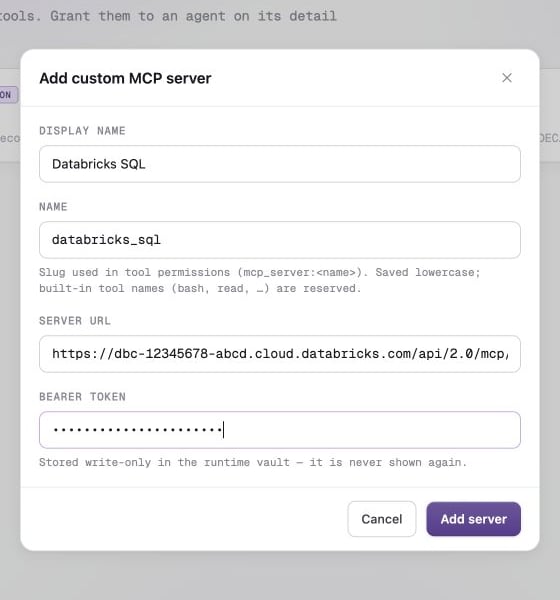
Register each Databricks endpoint as a separate MCP server.
1. In Sidecar, select **Integrations → MCP Servers**.
2. Click **Add MCP**, then select **Custom server**.
3. Enter values like these for a Genie Agent:
| Field | Example |
| ---------------- | --------------------------------------------------------------------- |
| **Display name** | `Databricks Genie — Finance` |
| **Name** | `databricks_genie_finance` |
| **Server URL** | `https://dbc-a1b2c3d4.cloud.databricks.com/api/2.0/mcp/genie/01ef...` |
| **Bearer token** | The service-principal PAT |
4. Click **Add server**.
5. Confirm that the server status is **Connected** and review the discovered tools.
The hostname must be your workspace hostname, not the account-console hostname
or a SQL warehouse HTTP path. Databricks documents the bearer header and client
setup in [Connect MCPs to AI assistants and coding
agents](https://docs.databricks.com/aws/en/agents/mcp/connect-clients#connect-clients-using-personal-access-token-pat-authentication).
 Continue by [granting the server to an agent and selecting it for
jobs](/products/agent-console/setup/give-agents-mcp-access).
## Operate the connection
* Replace the token in Sidecar before the PAT expires.
* Use one service principal per security boundary when different agents need different access.
* Add Sidecar's outbound addresses to Databricks workspace IP access lists when your workspace restricts clients.
* Test the exact endpoint and PAT with the [MCP Inspector](https://github.com/modelcontextprotocol/inspector) when tool discovery fails.
Databricks-hosted custom MCP servers do not support PAT authentication. The
direct PAT setup above applies to Databricks managed MCP servers and MCP
Services. Put a compatible bearer-authenticated gateway in front of a custom
Databricks-hosted server before registering it in Sidecar.
Continue by [granting the server to an agent and selecting it for
jobs](/products/agent-console/setup/give-agents-mcp-access).
## Operate the connection
* Replace the token in Sidecar before the PAT expires.
* Use one service principal per security boundary when different agents need different access.
* Add Sidecar's outbound addresses to Databricks workspace IP access lists when your workspace restricts clients.
* Test the exact endpoint and PAT with the [MCP Inspector](https://github.com/modelcontextprotocol/inspector) when tool discovery fails.
Databricks-hosted custom MCP servers do not support PAT authentication. The
direct PAT setup above applies to Databricks managed MCP servers and MCP
Services. Put a compatible bearer-authenticated gateway in front of a custom
Databricks-hosted server before registering it in Sidecar.