> ## Documentation Index
> Fetch the complete documentation index at: https://docs.sidecardata.com/llms.txt
> Use this file to discover all available pages before exploring further.
# Create a job
> Create an Agent Console job from scratch, a preset, or a template
Open an agent to create a custom job or use one of its released presets. Available options depend on the agent.
| Starting point | Use it when | What you can change |
| -------------- | ------------------------------------------------------------------------------ | -------------------------------------------------------------- |
| Custom job | You need your own instructions, scope, output, and manual or scheduled trigger | All standard job settings |
| Preset | Sidecar provides a supported recurring or event-driven workflow | Active state, MCP servers, tool permissions, and notifications |
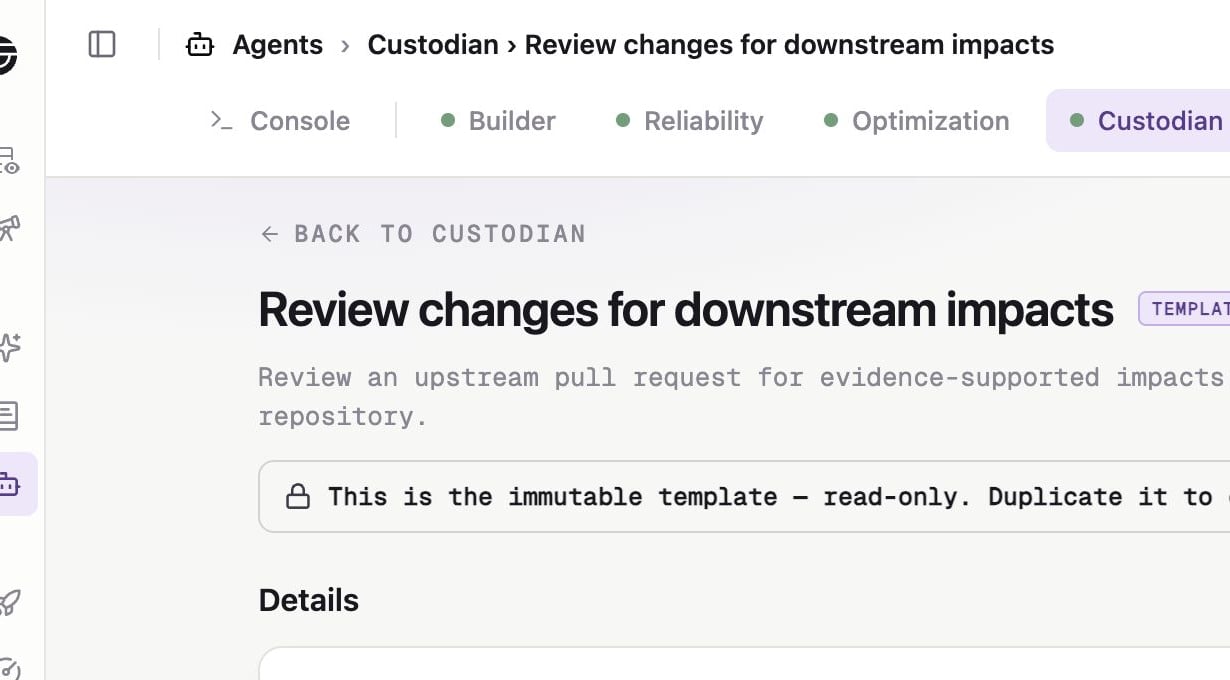
| Template | The workflow needs specialized configuration, such as Custodian | Duplicate the read-only template, then configure the copy |
## Create a custom job
1. In Sidecar, select **Agents**.
2. Open the agent that should perform the work.
3. Click **New job**.
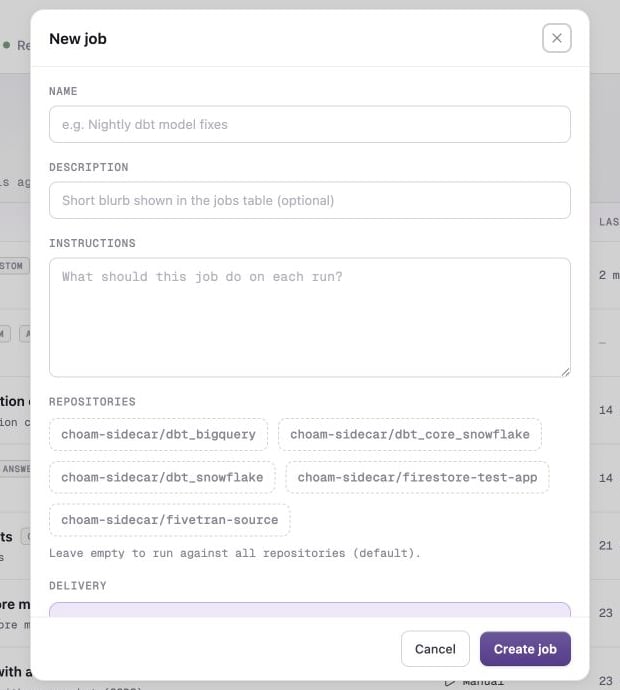
4. Complete the form.
 ### Name and description
Use a name that describes a repeatable outcome. The optional description appears in the job list.
### Instructions
Describe what the agent should do on every run. State the target, expected result, validation, and important boundaries.
### Repositories
Select one or more repositories, or leave the selection empty to use all currently accessible repositories. Learn how the scope changes over time in [Configure a job](/products/agent-console/jobs/configure-a-job#repository-scope).
### Delivery
Available options depend on the agent's repository requirements:
* **Open a pull request**
* **Push to a branch**
* **Text response in Agent Console**
### Trigger
Choose:
* **Manual** — the job runs only when an Account Admin clicks **Run now**.
* **Scheduled** — the job runs on an interval, at specific hours, or from a cron expression. **Run now** remains available.
Custom jobs cannot select webhook, monitor, or chat triggers. Sidecar owns those trigger types for specialized workflows.
Click **Create job** to open its configuration page.
MCP servers and tool permissions are not part of the New job dialog. Configure
them after Sidecar creates the job.
## From a preset
Agents with released presets show **From preset** beside **New job**.
1. Click **From preset**.
2. Review the preset's resources, trigger, and starting state.
3. Add the preset.
4. Open the installed job and review its readiness, MCP selection, tool permissions, and active state.
### Name and description
Use a name that describes a repeatable outcome. The optional description appears in the job list.
### Instructions
Describe what the agent should do on every run. State the target, expected result, validation, and important boundaries.
### Repositories
Select one or more repositories, or leave the selection empty to use all currently accessible repositories. Learn how the scope changes over time in [Configure a job](/products/agent-console/jobs/configure-a-job#repository-scope).
### Delivery
Available options depend on the agent's repository requirements:
* **Open a pull request**
* **Push to a branch**
* **Text response in Agent Console**
### Trigger
Choose:
* **Manual** — the job runs only when an Account Admin clicks **Run now**.
* **Scheduled** — the job runs on an interval, at specific hours, or from a cron expression. **Run now** remains available.
Custom jobs cannot select webhook, monitor, or chat triggers. Sidecar owns those trigger types for specialized workflows.
Click **Create job** to open its configuration page.
MCP servers and tool permissions are not part of the New job dialog. Configure
them after Sidecar creates the job.
## From a preset
Agents with released presets show **From preset** beside **New job**.
1. Click **From preset**.
2. Review the preset's resources, trigger, and starting state.
3. Add the preset.
4. Open the installed job and review its readiness, MCP selection, tool permissions, and active state.
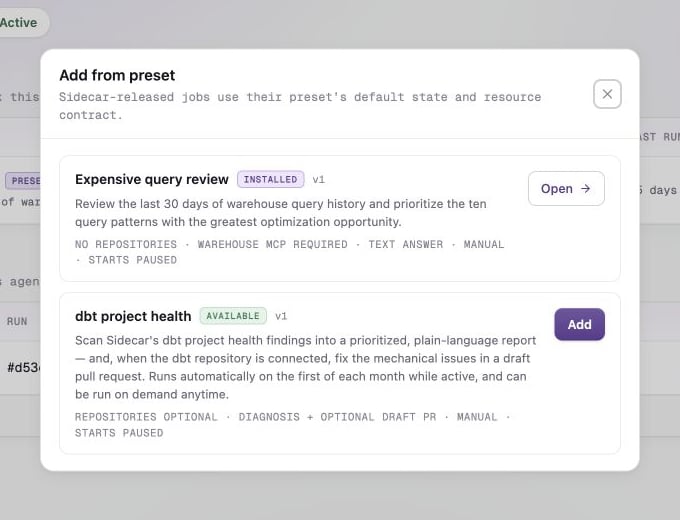 Sidecar owns the preset's name, description, instructions, repository contract, delivery, and trigger. Updating a released preset can update those product-owned fields.
Deleting a preset job does not remove it from the catalog. You can restore it as a fresh job later.
## From a template
A template is a read-only definition that never runs directly.
1. Click **From preset**.
2. Click **View template**.
3. Review the fixed workflow.
4. Click **Duplicate**.
5. Configure and activate the new copy.
Custodian uses this flow. Follow the [Custodian downstream-impact review recipe](/products/agent-console/recipes/custodian-downstream-impact-review) for its additional GitHub and repository requirements.
Sidecar owns the preset's name, description, instructions, repository contract, delivery, and trigger. Updating a released preset can update those product-owned fields.
Deleting a preset job does not remove it from the catalog. You can restore it as a fresh job later.
## From a template
A template is a read-only definition that never runs directly.
1. Click **From preset**.
2. Click **View template**.
3. Review the fixed workflow.
4. Click **Duplicate**.
5. Configure and activate the new copy.
Custodian uses this flow. Follow the [Custodian downstream-impact review recipe](/products/agent-console/recipes/custodian-downstream-impact-review) for its additional GitHub and repository requirements.