Documentation Index

Fetch the complete documentation index at: https://docs.sidecardata.com/llms.txt

Use this file to discover all available pages before exploring further.

Use this guide to create a context repo from catalog assets, review the generated files, publish a version, and make it available to another tool.

Before you start

You need:
  • A Sidecar workspace with Context Garage enabled
  • A connected warehouse with catalog assets synced into Sidecar
  • Permission to create and publish context repos

Create a context repo

1

Open Context Garage

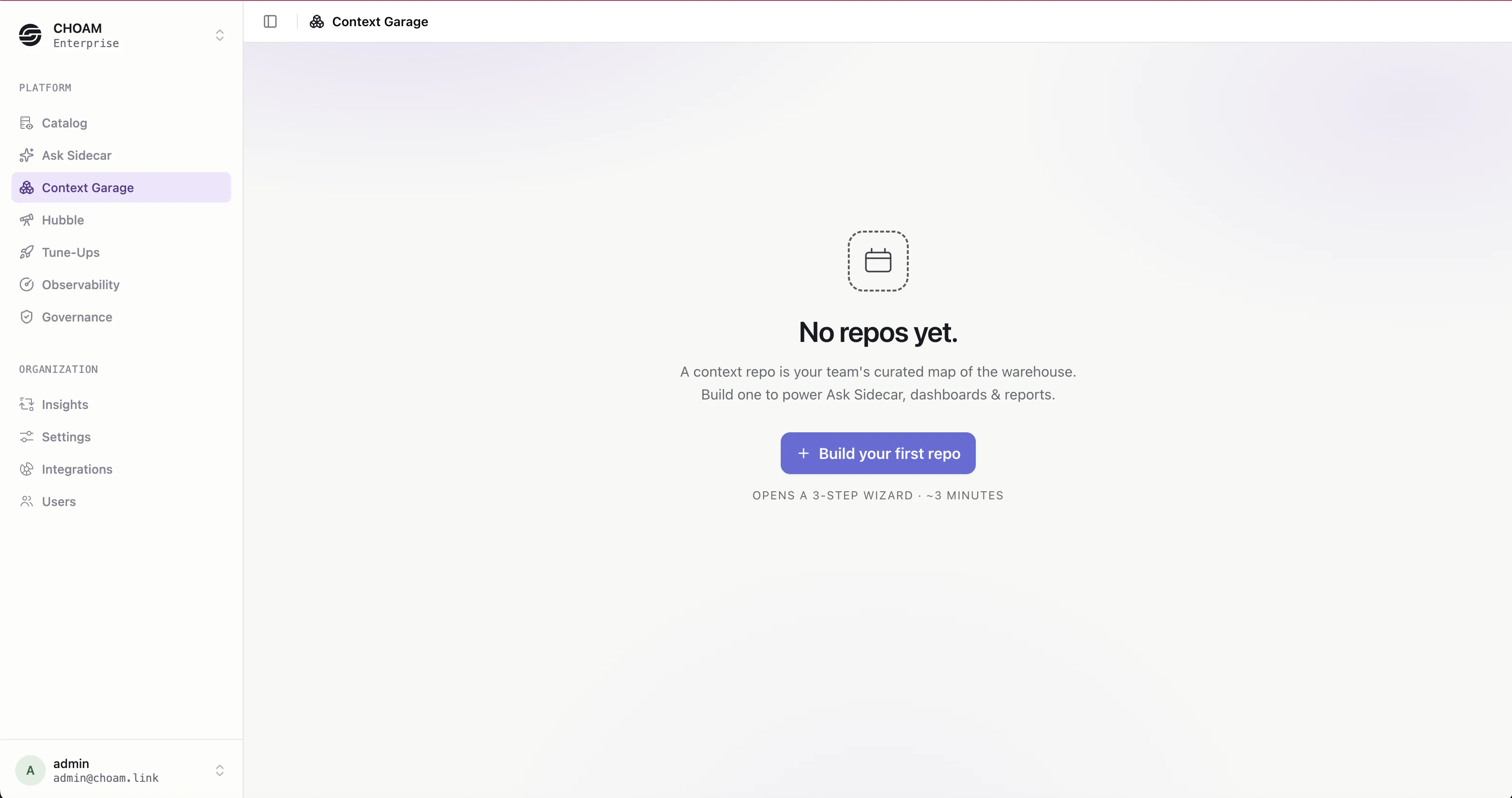
In Sidecar, open Context Garage from the main navigation.
Context Garage empty state with Build your first repo button
2

Start a new repo

Click Build your first repo. Sidecar opens the Build a context repo wizard.
3

Select assets

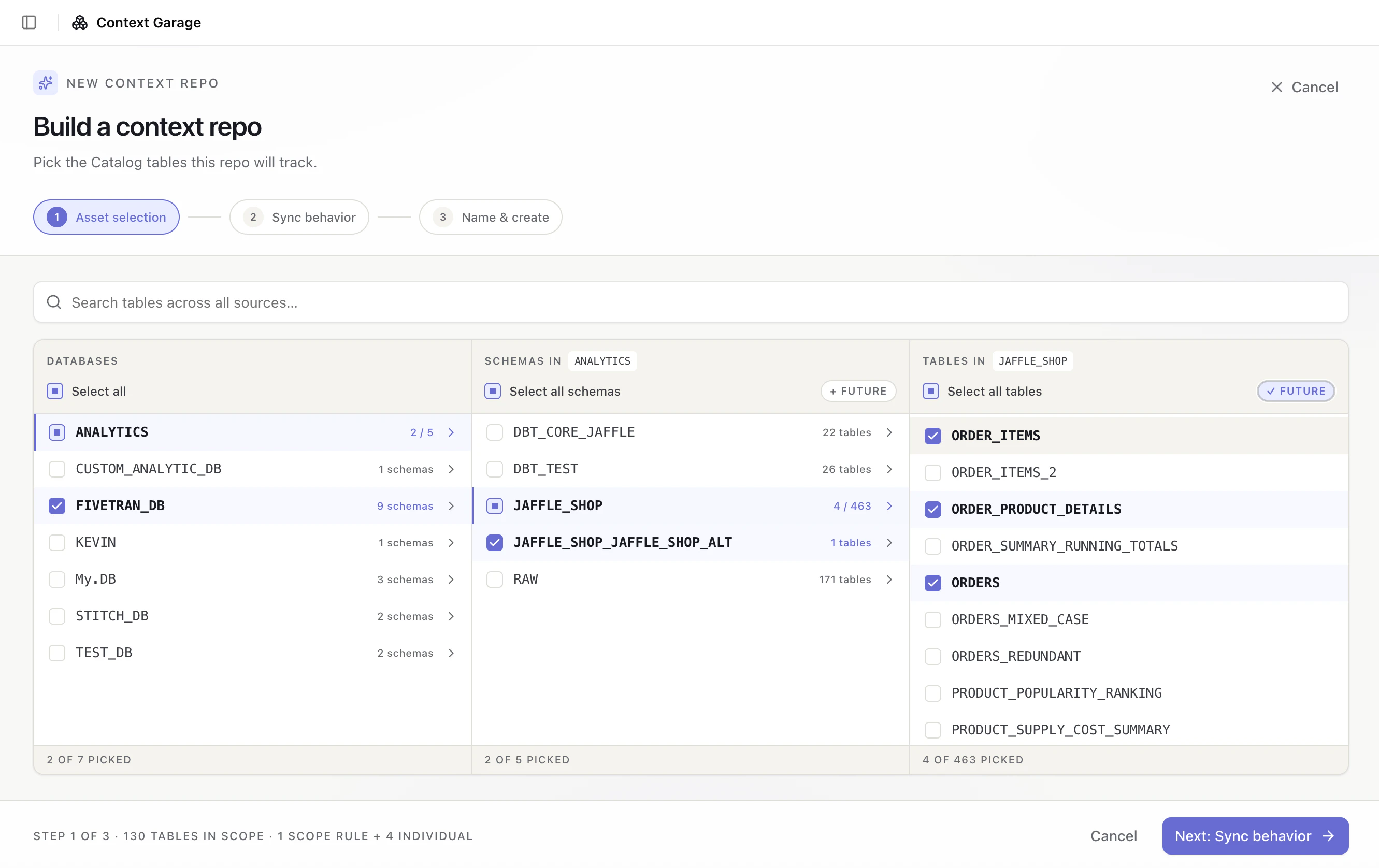
Choose the Catalog tables this repo should track. You can select individual tables or select a broader database or schema scope.To include matching tables that are discovered later, enable Future for the selected scope.
Three-column asset selector with databases, schemas, tables, selected rows, and Future controls
4

Choose sync behavior

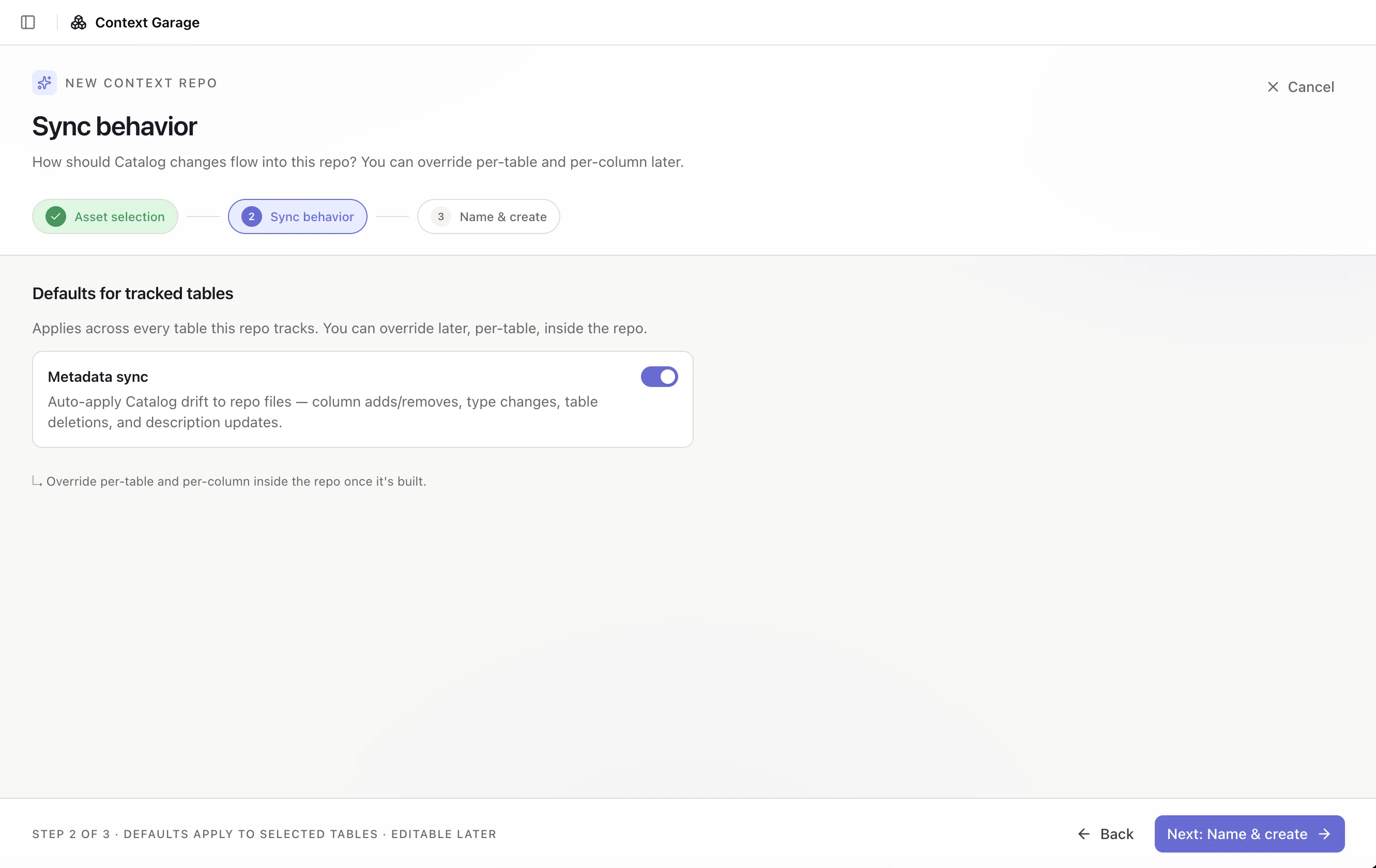
Click Next: Sync behavior. Choose whether Sidecar should auto-apply Catalog drift to tracked repo files.When Metadata sync is enabled, Sidecar can update the draft for column adds and removals, type changes, table deletions, and description updates. You can override this behavior later inside the repo.
Sync behavior step with the Metadata sync toggle enabled
5

Name the repo

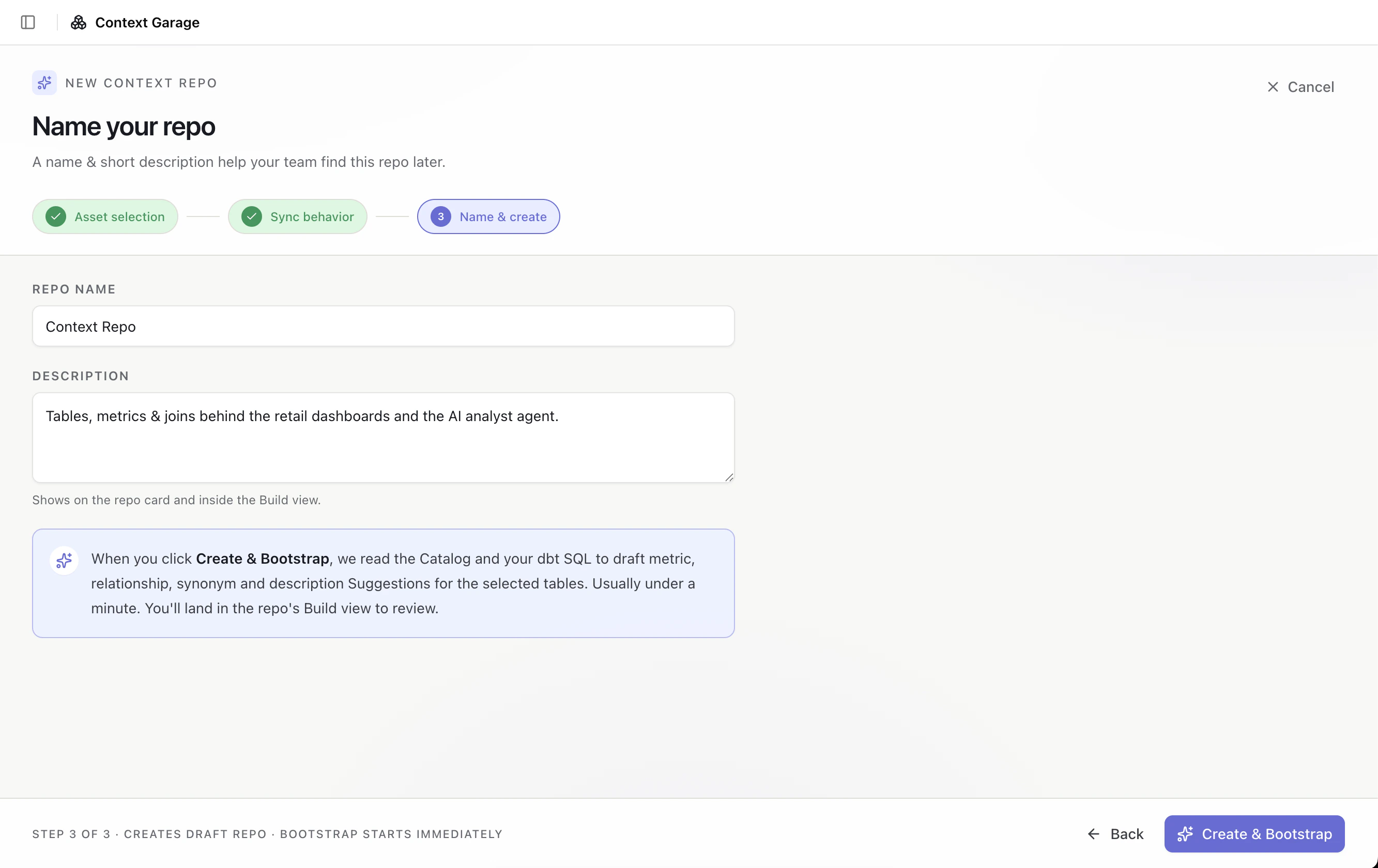
Click Next: Name & create. Enter a repo name and optional description.The description appears on the repo card and inside the Build view.
Name your repo step with repo name, description, and Create and Bootstrap button
6

Create and bootstrap

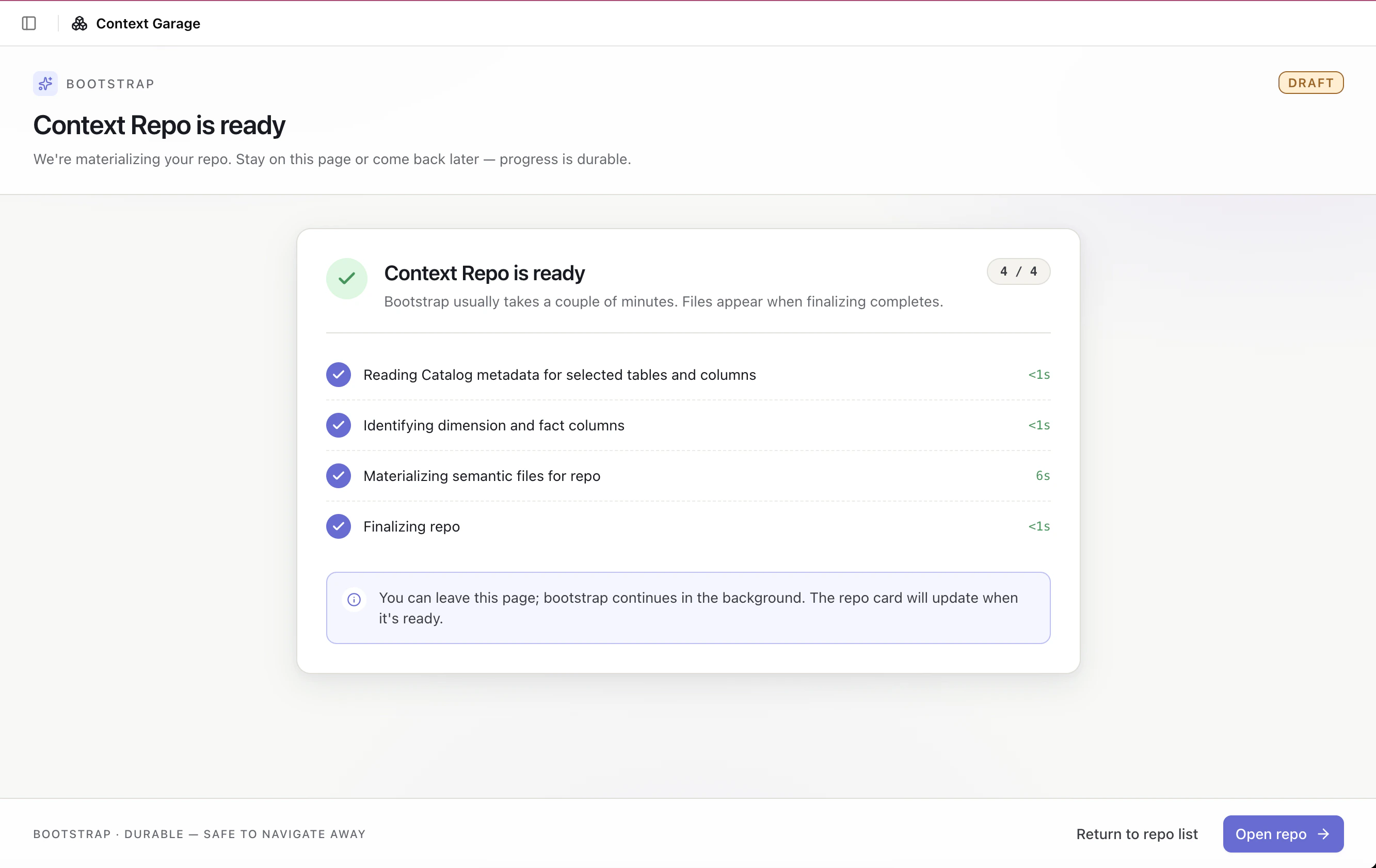
Click Create & Bootstrap. Sidecar reads the Catalog and available dbt SQL, generates the initial repo files, and creates a draft repo.Bootstrap is durable. You can leave the page and return later while it runs.
Bootstrap progress page with stages for reading Catalog metadata, identifying dimension and fact columns, materializing semantic files, and finalizing the repo

Review and edit files

Use the file navigator to open generated files and review the YAML. Common first edits include:
  • Update dataset and field descriptions
  • Mark important fields as dimensions, facts, or time dimensions
  • Add relationships between datasets
  • Add shared metrics
Context Garage file navigator with a dataset YAML file open in the editor

Publish a version

When the draft is ready, publish it.
1

Open the publish flow

Click Publish from the repo editor.
2

Review generated artifacts

Review the generated OSI and target-specific artifacts, such as Cortex YAML.
3

Publish

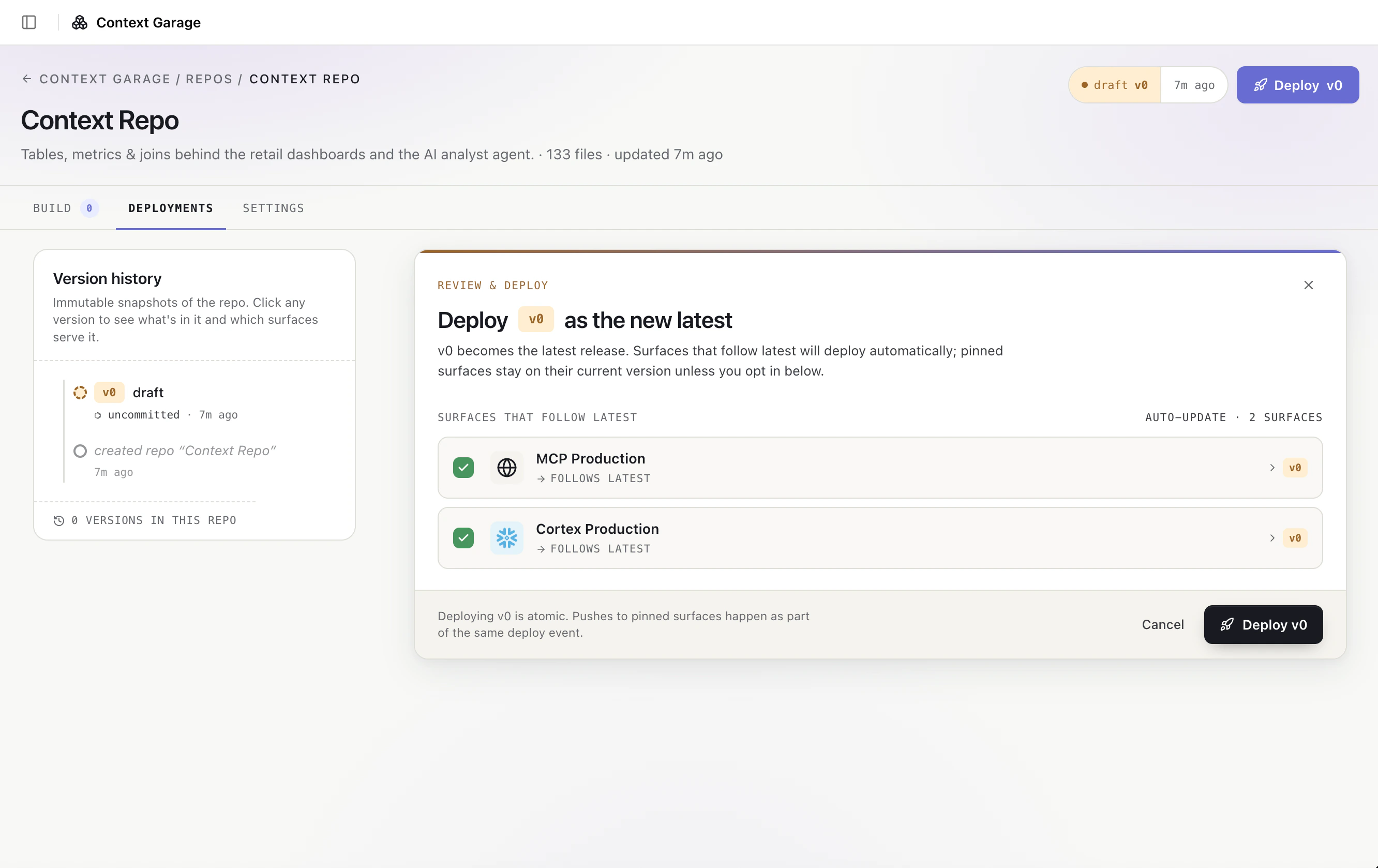
Add an optional message and click Publish version. Sidecar creates the next immutable version, such as v0 or v1.
Publish dialog showing generated artifacts and the next version number

Serve the published version

After publishing, choose how to use the version.

Download YAML

Download the generated OSI or target-specific YAML for a self-managed workflow.

Serve through MCP

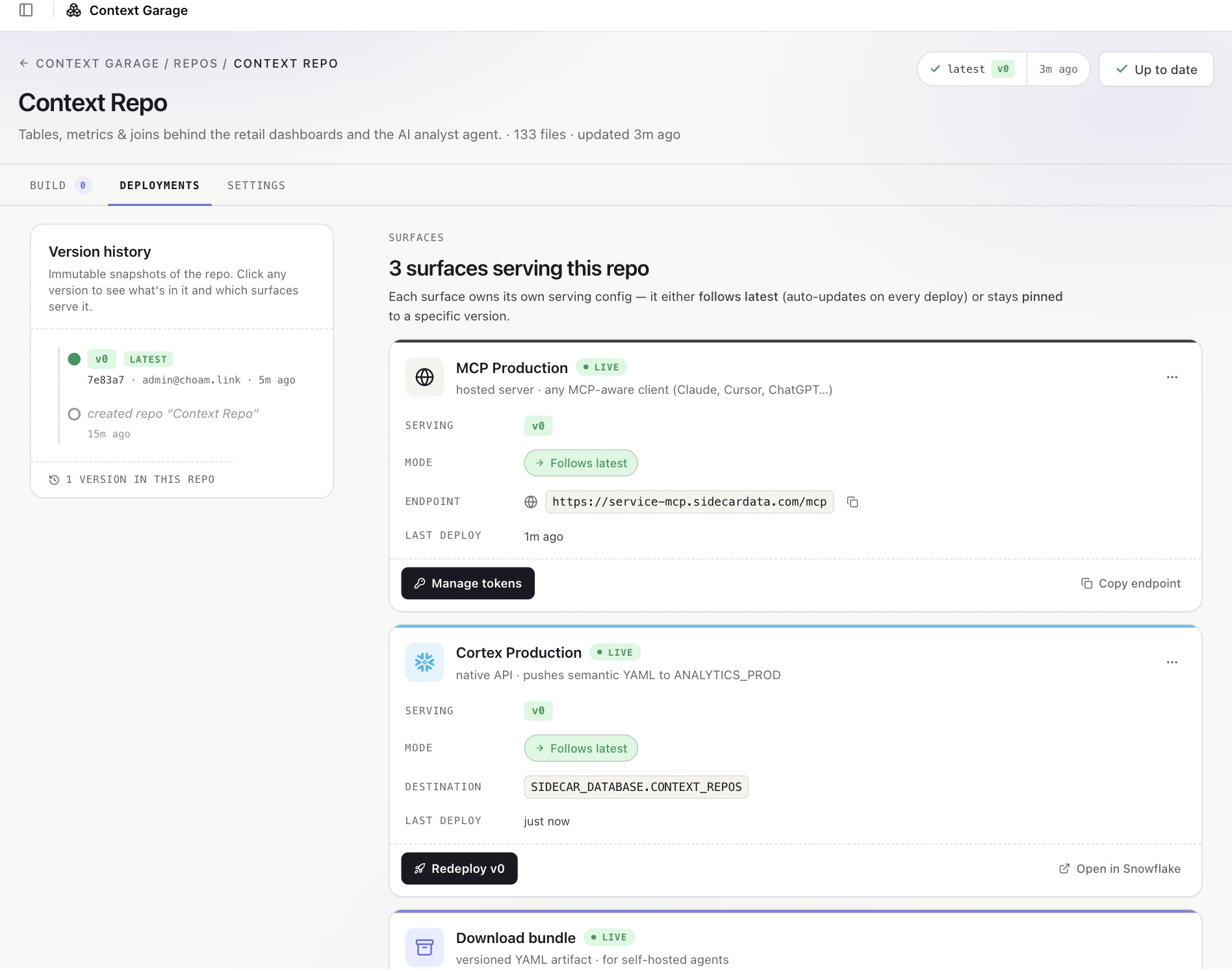
Create an MCP deploy surface and generate a token for AI tools that support MCP.

Deploy to Snowflake Cortex

Create a Cortex deploy surface to push the generated semantic view YAML to Snowflake.

Track latest

Configure a deploy surface to track the latest published version so new versions are served automatically.
Deploy surfaces page with MCP, Cortex, and download options

Keep the repo current

As your catalog changes, return to the asset selector to update what the repo tracks. When you save selection changes:
  • Newly selected tables are added to the draft
  • Unselected tables are removed from the draft
  • Existing dataset files remain in place
  • Future inclusion rules continue to add matching new assets
Publish a new version when the draft is ready for downstream tools.