

You must be an Account Admin to open the Agent Console, manage its settings,
or approve a gated tool action.
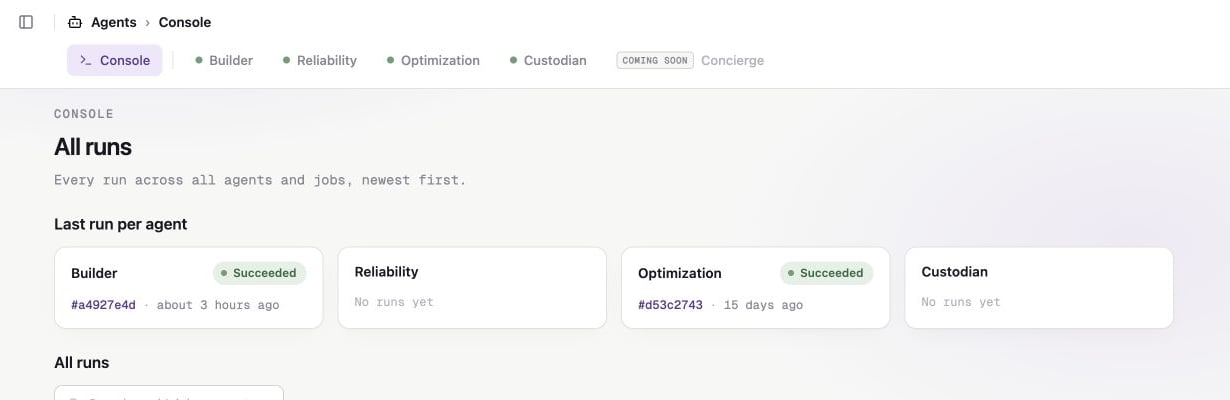
The Console lists runs across every live agent. Concierge is coming soon.
How the Agent Console is organized
Agents
Each agent has a specific role. For example, Builder handles engineering work while Reliability investigates data incidents. Start with Choose an agent to compare them. An agent’s Settings page controls its connected MCP servers and the defaults used for Slack runs.Jobs
A job is saved work for one agent. It contains instructions, repository scope, output settings, a trigger, MCP access, and tool permissions. You can create a custom job, install a preset, or duplicate a template. The options depend on the agent. See Create a job.Runs
A run is one execution of a job or Slack request. The Console lists runs across every agent. Open a run to review its progress, transcript, approvals, and artifacts.Resources and tools
Agents can use several types of context. Each type has its own setup path:
Use the Agent Console setup guide to prepare these resources.
Start here
Create your first job
Follow a complete Builder example from setup through the first run.
Choose an agent
Compare each live agent and its intended work.
Set up Agent Console
Connect repositories, dbt, MCP servers, and knowledge.
Run an agent from Slack
Send an ad hoc request by direct message.