

Databricks recommends OAuth for production. Sidecar’s custom connector does
not yet perform OAuth token refresh, so this guide uses a service-principal
PAT. Set a short lifetime that fits your operating process and rotate it
before it expires.
Choose a managed server
Databricks publishes these endpoint patterns:
See Databricks managed MCP servers
for current endpoints, release stages, scopes, and resource permissions.
Prefer a Genie Agent, AI Search index, or narrowly scoped Unity Catalog
function when possible. The Databricks SQL server can modify data, and Sidecar
applies MCP approval settings to the server as a whole rather than to individual
tools.
Prepare the Databricks identity
- Create a Databricks service principal for Sidecar automation.
- Add it to the workspace.
- Grant it access to the selected MCP server and its underlying resource.
- For a SQL-backed resource, grant Can use on the SQL warehouse and only the required Unity Catalog privileges.
Create a service-principal PAT
A workspace admin can create a PAT on behalf of the service principal. Replace the application ID and choose a lifetime that matches your rotation policy. This example uses 90 days:create-obo-token CLI reference.
Register the server in Sidecar
Register each Databricks endpoint as a separate MCP server.- In Sidecar, select Integrations → MCP Servers.
- Click Add MCP, then select Custom server.
- Enter values like these for a Genie Agent:
- Click Add server.
- Confirm that the server status is Connected and review the discovered tools.
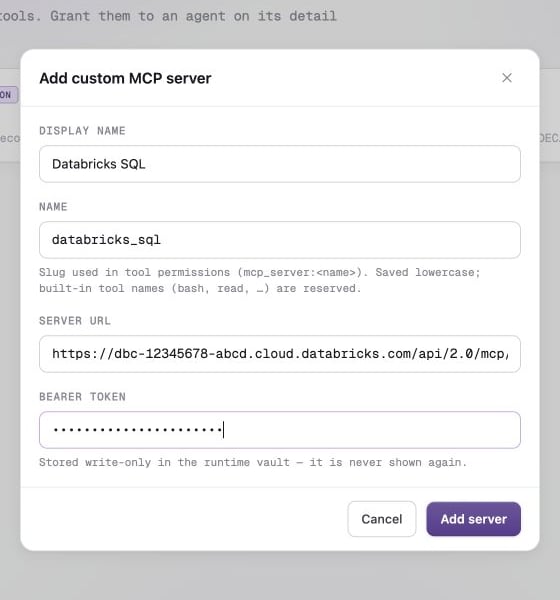
Register the exact managed-server endpoint as a custom MCP server.
Operate the connection
- Replace the token in Sidecar before the PAT expires.
- Use one service principal per security boundary when different agents need different access.
- Add Sidecar’s outbound addresses to Databricks workspace IP access lists when your workspace restricts clients.
- Test the exact endpoint and PAT with the MCP Inspector when tool discovery fails.